> For the complete documentation index, see [llms.txt](https://docs.devtodev.com/llms.txt). Markdown versions of documentation pages are available by appending `.md` to page URLs; this page is available as [Markdown](https://docs.devtodev.com/integration/integration-of-sdk-v2/remote-configuration/rc-interface.md).
# Working with remote configuration in devtodev
{% hint style="success" %}
We will greatly appreciate your feedback. Please add **REMOTE CONFIGS** when submitting your request.
{% endhint %}
**Remote Configuration** (**Remote config** or **RC**) allows you to customize the app by sending key-value pairs directly to the user’s device. These configs are defined in the devtodev interface and sent to the SDK immediately or at a scheduled time. Remote configs are stored on the devtodev servers. This allows to trigger changes in the app, without updating app versions or changing app code every time.
{% hint style="warning" %}
**Prerequisite:**
Currently remote configs are available only for SDK version 2.6.0 (Android & iOS), Unity 3.10.0, Web 3.0 and higher.
{% endhint %}
## Preparation
Before using a **remote configuration** in devtodev interface, you need to set variables through the SDK and use the methods to apply new parameters. If the app is offline and will not be able to present the config to the user, they will see default values and the app will continue to function correctly.
Integrate remote configs with devtodev SDK:
{% content-ref url="/pages/ILfpUOti7vVOUd2HNTSL" %}
[Remote configuration SDK integration](/integration/integration-of-sdk-v2/remote-configuration/rc-integration.md)
{% endcontent-ref %}
## How to create a remote configuration
In order to create and send a **remote configuration** to user devices, you need to set **parameter** values and define **conditions** to select the audience.
{% stepper %}
{% step %}
### [Create conditions](#create-new-condition)
Define the audience and schedule changes
{% endstep %}
{% step %}
### [Create parameters](#create-new-parameter)
Set values and select conditions
{% endstep %}
{% step %}
### Publish changes
The configuration is finalised and sent to user devices.
Click `Publish changes` to update the configuration.
{% endstep %}
{% endstepper %}
### Conditions
**Conditions** define the user group (similar to a segment) that will see the modified interface. You can use basic and custom user properties, as well as previously created segments, to filter the audience.
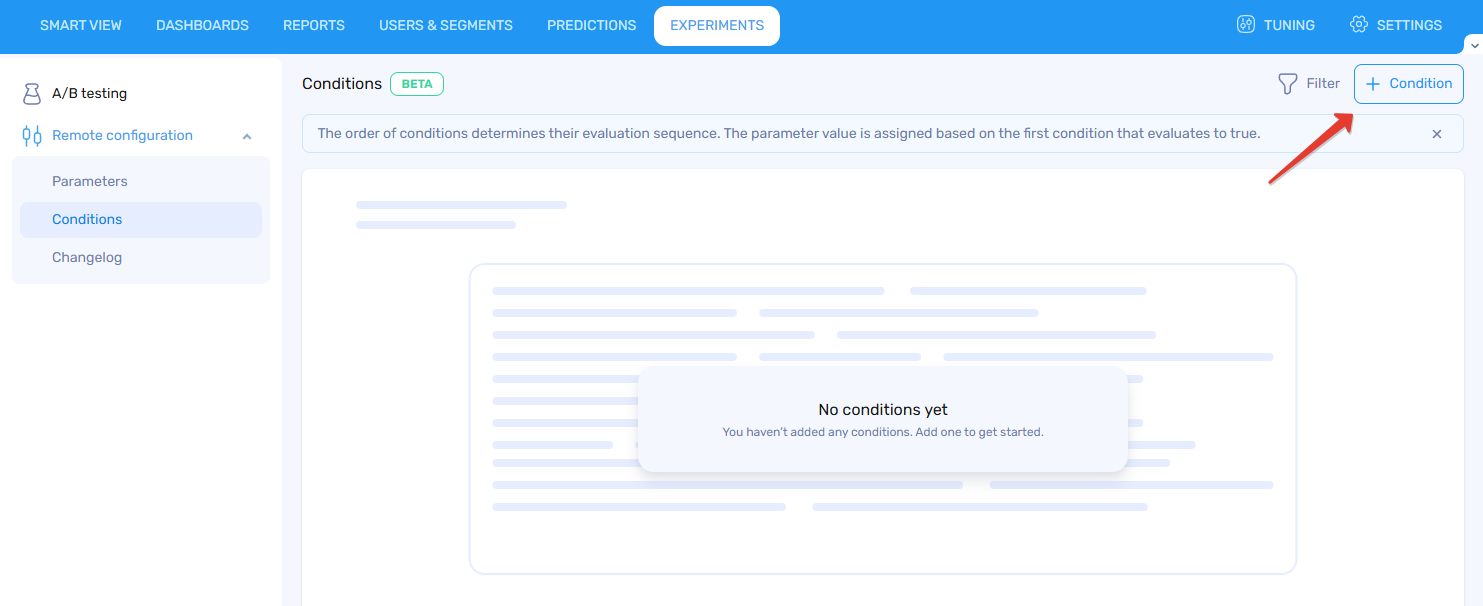
The order of conditions determines their evaluation sequence. The parameter value is assigned based on the first condition that evaluates to true. The condition at the top of the list has the highest priority.
The order is important since several conditions may apply to one user. For example, **Parameter A** is sent to users from the **US that have finished 5 levels**. **Parameter B** is for users that have **completed the onboarding** (onboarding is obligatory). In this case, both parameters can apply to the **US, 5+ levels** group of users. You can change the order of the Conditions to define the parameter configuration these users will see.
You can filter the conditions by selecting `Filter` in the top right corner.
#### Create new condition
Click `+Condition` to add a new condition.
1. Configure your **condition settings**:
* **Condition name**
* **Color** – select a color tag. You can use the color tags to organize and filter your conditions.
* **Description** – add details about this condition and audience.
2. Next, define the **Audience conditions** with user properties.
3. Select when the new parameter value will apply to the condition audience:
* **Permanent** – the changes will apply instantly.
* **Scheduled** – the changed parameter value will apply only during the set time frame.
Click `Finish` to complete condition creation.
You can change the condition settings later using the `Edit` button (pencil icon) or simply by clicking on the condition card.
### Parameters
**Parameters** represent changes in the app’s UI/UX, a configuration of the interface visible to selected users. They should be pre-implemented in the app and linked to a variable. Parameter value is stored in a key-value format, for example, “button\_color” = “green“.
The **Parameters** section shows detailed information about all of your created parameters:
* **Parameter** – name, value type and description.
* **Condition** – to what audience does this parameter apply.
* **Value** – shows parameter value for each condition.
* **Users** – how many users have this configuration.
* **Last published** – date when the configuration was published.
You can filter the parameters by selecting `Filter` in the top roght corner.
#### Create new parameter
Click `+Parameter` to add a new parameter.
Configure your **parameter settings**:
* **Parameter name (key)** – the name should be unique and correspond to the variable in your app code.
* **Type** – value type can be a Number, String, JSON or Boolean.
* **Description** – what does this parameter change in the app.
* **Default value** – set the default value for any condition.
* You can use `in-app default` – in this case the parameter will use the default value define in your app code.
Next, configure **Conditional values**.
1. Click `+Condition` and select one or multiple conditions from the list.
2. Define a parameter value for each condition or use an `in-app deafult`.
3. Click `Finish` to complete parameter creation.
If you do not have any created [**Conditions**](#conditions) yet, you can click `Finish` and add a condition later.
{% hint style="info" %}
Without conditions, parameter changes will be applied to all users.
{% endhint %}
You can change the parameter later using the `Edit` button in three dots menu.
#### Folders
For convenience, you can organise parameters in folders. Click `Add Folder`, give it a name and description and click `Create Folder`.
You can move parameters to different folders.
* Click on three dots on the right and click `Move to folder`, select a destination folder and click `Move`.
* You can also move parameters in bulk: select the necessary parameters and click `Move to Folder` button in the top right corner.
To edit folder information, delete or ungroup a folder, select a corresponding option in the three dots menu.
## Changelog
Each configuration of parameters and conditons is stored as a different version.
You can compare the versions side by side and, if needed, `Roll back` to an old version of the configuration. Rolling back will create a new version of the config and send changes to user devices.
Parameters changelog
Conditions changelog
## Using remote configuration with A/B tests
We will add an option to send a parameter configuration directly from the A/B test page in the future updates.
If a user enters an A/B test, they will receive parameter values according to their test group configuration.
{% hint style="warning" %}
Parameter values received during an A/B test rewrite the default values and previously set values from the remote config. These test values **cannot be changed** until you finish the experiment (A/B test value has the highest priority).
{% endhint %}
The priority order for parameter value source is the following:
1. **Top priority** – A/B test parameter value.
2. Remote config value from devtodev server.
3. Least priority – Default value defined in the application code.
For now, if you would like to check which parameter configuration performs better during an A/B test, you need to do the following:
1. Before launching an A/B test, create a condition with the same audience that will be used in the test.
2. Create a parameter configuration that you would like to test with this condition.
3. Publish changes. The configuration will be sent to user devices.
4. Launch the A/B test. The SDK will update the configuration on device and all events will be marked with an A/B test group.
## Limitations
* For now, you cannot use Custom events to define a [**condition**](#conditions) audience. However, you can create a [user segment](/reports-and-functionality/project-related-reports-and-fuctionality/users.md#segments) with the necessary event and use this segment instead.
* You cannot see the current configuration in the user card.
* The [changelog](#changelog) stores around 200 configuration versions.
---
# Agent Instructions
This documentation is published with GitBook. GitBook is the documentation platform designed so that both humans and AI agents can read, navigate, and reason over technical content effectively. Learn more at gitbook.com.
## Querying This Documentation
If you need additional information that is not directly available in this page, you can query the documentation by asking a question.
Perform an HTTP GET request on the following URL with the `ask` and `goal` query parameters:
```
GET https://docs.devtodev.com/integration/integration-of-sdk-v2/remote-configuration/rc-interface.md?ask=&goal=
```
`ask` is the immediate question: it should be specific, self-contained, and written in natural language.
`goal` is what the user is ultimately trying to achieve, the reason they need the answer. Sharing it helps GitBook give you a better, more relevant answer. A goal is most helpful when it describes the outcome the user wants rather than restating the question. For example, with `ask=how do I create an API token`, a goal like `automate deployments from our CI pipeline` lets GitBook tailor the answer to that use case.
The response will contain a direct answer to the question and relevant excerpts and sources from the documentation.
Use this mechanism when the answer is not explicitly present in the current page, you need clarification or additional context, or you want to retrieve related documentation sections.